Agentic Testing Framework
Test and validate your GPTfy agents and prompts with automated test cycles
What is Agentic Testing Framework?
Agentic Testing Framework is a comprehensive testing feature that enables you to systematically test agents and prompts. This feature helps ensure quality and accuracy of AI responses by running automated tests with verification prompts.
How to Create a Test Cycle
Follow these steps to create a new test cycle:
Step 1: Navigate to Test Cycles
- Go to the App Launcher
- Search for "Test Cycles"
- Open the Test Cycles application
Step 2: Create a New Test Cycle Record
- Click the New button to create a test cycle record
- Fill in the following required fields:
| Field | Description | Requirements |
|---|---|---|
| Name | Provide a descriptive name for the test cycle | Required |
| Agent | Select the agent to test | Agent must be active to appear in dropdown |
| Prompt | Select the prompt to test | Prompt must be active to appear in dropdown |
| Verification Prompt | Select a verification prompt (created on security audit) | Prompt must be active to appear in dropdown |
Important: You cannot select both an agent and a prompt simultaneously in the same test cycle. Choose one or the other based on what you want to test.
- Click Save to create the test cycle record
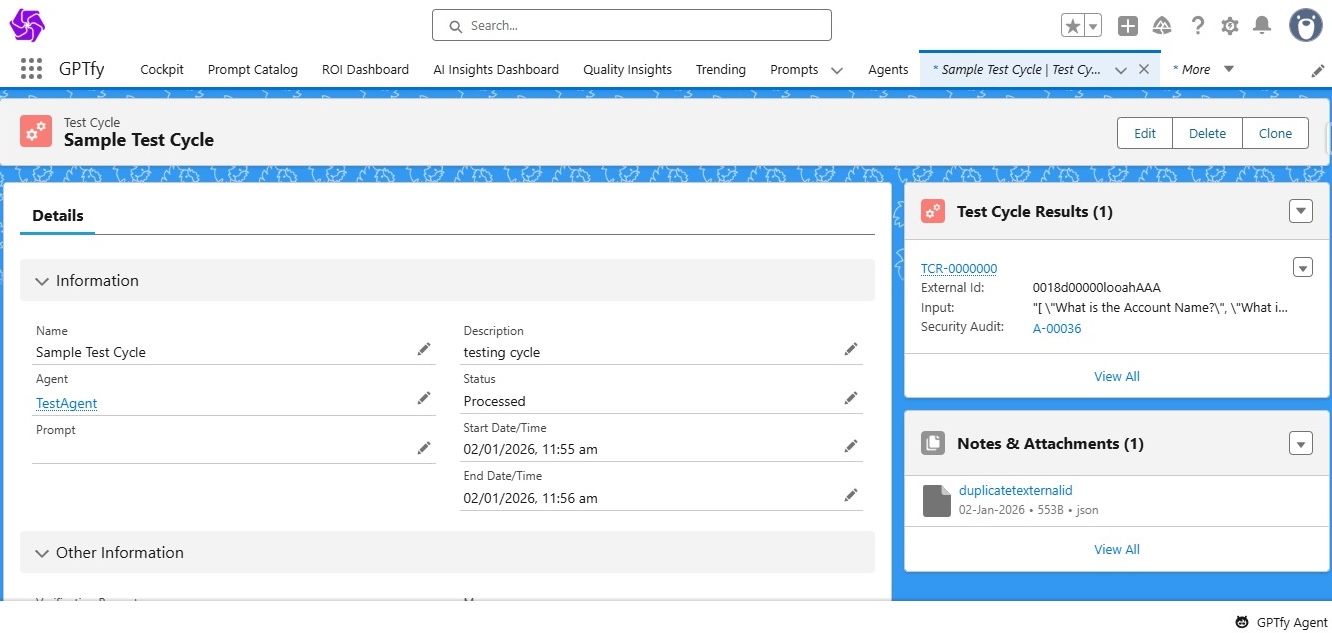
Step 3: Run the Test Cycle
- After saving, click the Run button in the highlights panel
- The test cycle will execute and generate results
- Verify the results using the verification prompt
Note: The Run button will only be visible when the status is in Draft state.
Test Cycle Fields
Basic Information
| Field | Description |
|---|---|
| Description | Holds information about the purpose of the test cycle |
| Status | Shows the current state of the test cycle (initially set to Draft) |
| Start Date/Time | Displays when the test cycle started execution |
| End Date/Time | Displays when the test cycle completed execution |
| Message | Populated with error messages when errors occur during execution |
Action Buttons in Highlights Panel
The highlights panel provides the following action buttons:
- Edit: Modify the configuration of the test cycle record
- Run: Execute the test cycle (only available when status is "Draft")
- Delete: Remove the test cycle record
- Clone: Create a duplicate of the current test cycle record
JSON File Upload Instructions
Test Cycle supports uploading JSON files to test agents and prompts with multiple scenarios. JSON files must be attached through the Notes & Attachments related list on the Test Cycle record page.
How to Attach JSON Files
- Navigate to your Test Cycle record
- Click Upload Files or drag and drop your JSON file
- The attached JSON file will be processed when you run the test cycle
JSON File Structure and Parameters
Each JSON file contains specific parameters depending on whether you're testing agents or prompts:
Parameters for Testing Agents
| Parameter | Description | Example |
|---|---|---|
externalId | The Salesforce record ID to test against | "0018d00000looahAAA" |
input | Array of questions to ask the agent | ["What is the Account Name?", "What is the Account Type?"] |
Parameters for Testing Prompts
| Parameter | Description | Example |
|---|---|---|
externalId | Numerical identifier for sequencing test results | "001", "002", "003" |
input | The Salesforce record ID to test the prompt against | "0018d00000looahAAA" |
JSON Format for Testing Agents
Use this format when testing agents with multiple questions against a specific record:
[
  {
    "externalId": "0018d00000looahAAA",
    "input": [
      "What is the Account Name?",
      "What is the Account Type (Customer, Partner, Prospect)?",
      "What is the Account Industry?",
      "What is the Billing Country?",
      "Create a new Account with name as Test AD Account",
      "Who is the primary contact for this Account?",
      "What is the Account Owner's name?",
      "What is the Account Annual Revenue?",
      "Is this Account active?"
    ]
  }
]
What happens when this runs:
- One security audit record is created for the record specified in
externalId - The agent will process all questions in the
inputarray for that record - All questions and their responses are tracked within the single security audit
JSON Format for Testing Prompts
Use this format when testing prompts with record IDs:
[
  {
    "externalId": "001",
    "input": "0018d00000looahAAA"
  }
]
What happens when this runs:
- One security audit record is created for the record specified in
externalId - The prompt executes on the record ID provided in
input - The prompt execution is tracked within the security audit
Testing Multiple Agents
To test multiple agents, include multiple objects in your JSON array:
[
  {
    "externalId": "0018d00000looahAAA",
    "input": [
      "What is the Account Name?",
      "What is the Account Owner?"
    ]
  },
  {
    "externalId": "0018d00000looahBBB",
    "input": [
      "What is the Annual Revenue?",
      "Is this Account active?"
    ]
  }
]
Security Audit Creation:
- 2 records (2
externalIdentries) = 2 security audit records total - Each security audit contains all questions for its respective record
Testing Multiple Prompts
To test multiple prompts, include multiple objects in your JSON array:
[
  {
    "externalId": "001",
    "input": "0018d00000looahAAA"
  },
  {
    "externalId": "002",
    "input": "0018d00000looahBBB"
  }
]
Security Audit Creation:
- 2 records = 2 security audit records total
Re-running Test Cycles
After running a test cycle, the Run button is removed from the highlights panel. To make the Run button appear again:
- Change the Status field back to Draft
- The Run button will reappear in the highlights panel
- You can now run the test cycle again
Security Audit Integration
Test Cycle automatically creates security audit records for full traceability and compliance.
How Security Audits are Created
For each externalId (record) in your test:
- One security audit record is created to track the agent or prompt execution
- If a verification prompt is configured, it analyzes the security audit response and creates an additional verification security audit record
Example:
- Testing 2 records = 2 security audits
- With verification prompt = 2 security audits + 2 verification security audits = 4 total
Test Cycle Results
For every test cycle run, Test Cycle Results records are automatically created to track execution details.
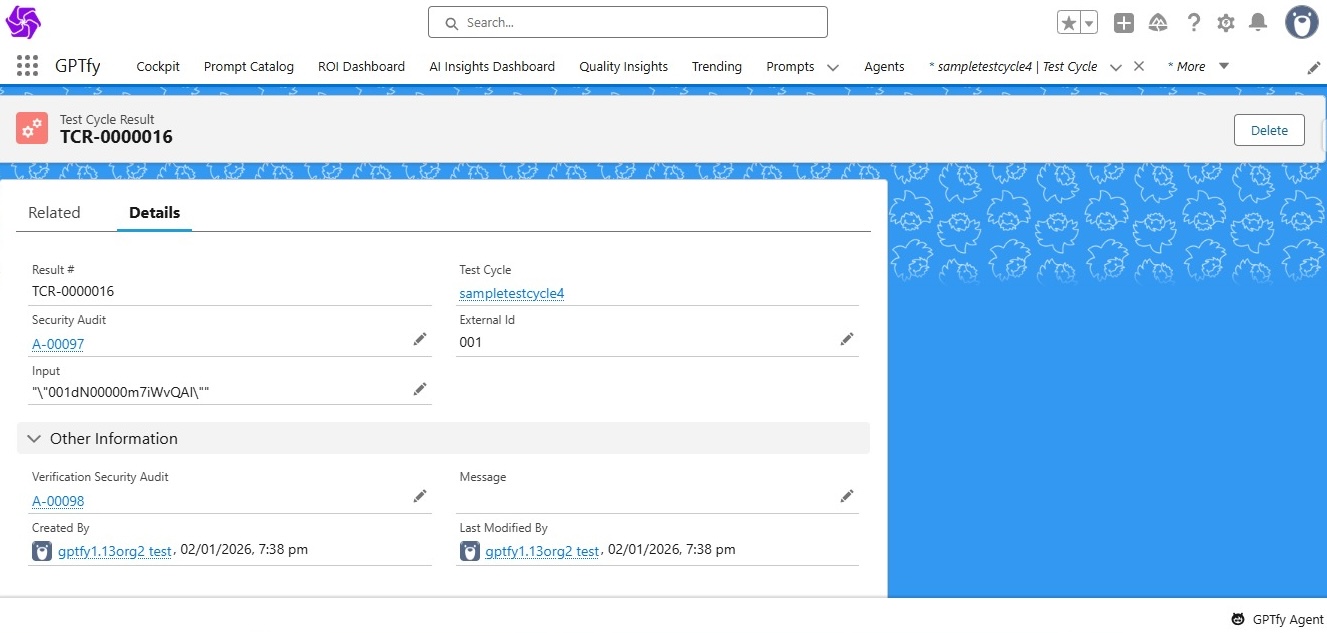
Test Cycle Results Fields
| Field | Description |
|---|---|
| Result # | Sequence number for the test cycle results record |
| Test Cycle | Lookup field linking to the parent test cycle record |
| Security Audit | Lookup field referencing the security audit record created for this test cycle |
| External Id | When testing an agent: outputs the record ID being tested When testing a prompt: provides sequence numbers like "001" |
| Input | When testing an agent: stores the question that was asked When testing a prompt: stores the record ID used in the test |
| Verification Security Audit | Lookup field referencing the security audit record created for the verification prompt execution |
| Message | Displays error messages when issues occur during test cycle execution |
Benefits
- Automated Testing: Systematically test agents and prompts without manual intervention
- Quality Assurance: Verification prompts ensure response quality and accuracy
- Full Traceability: Security audit records for every test run
- Batch Testing: Upload JSON files to test multiple scenarios at once
- Reusable: Clone existing test cycles to quickly create similar tests
- Compliance: All test activities are logged and auditable